
Hole diameter and clearance
Recognized holes can expose an editable diameter. Check which hole or group the operation affects, then enter a new value without enlarging the whole part.
Holes too small on a downloaded bracket, a plate too thick, the spacing wrong? Change them on the STL itself, without the original CAD project and without scaling the whole part.
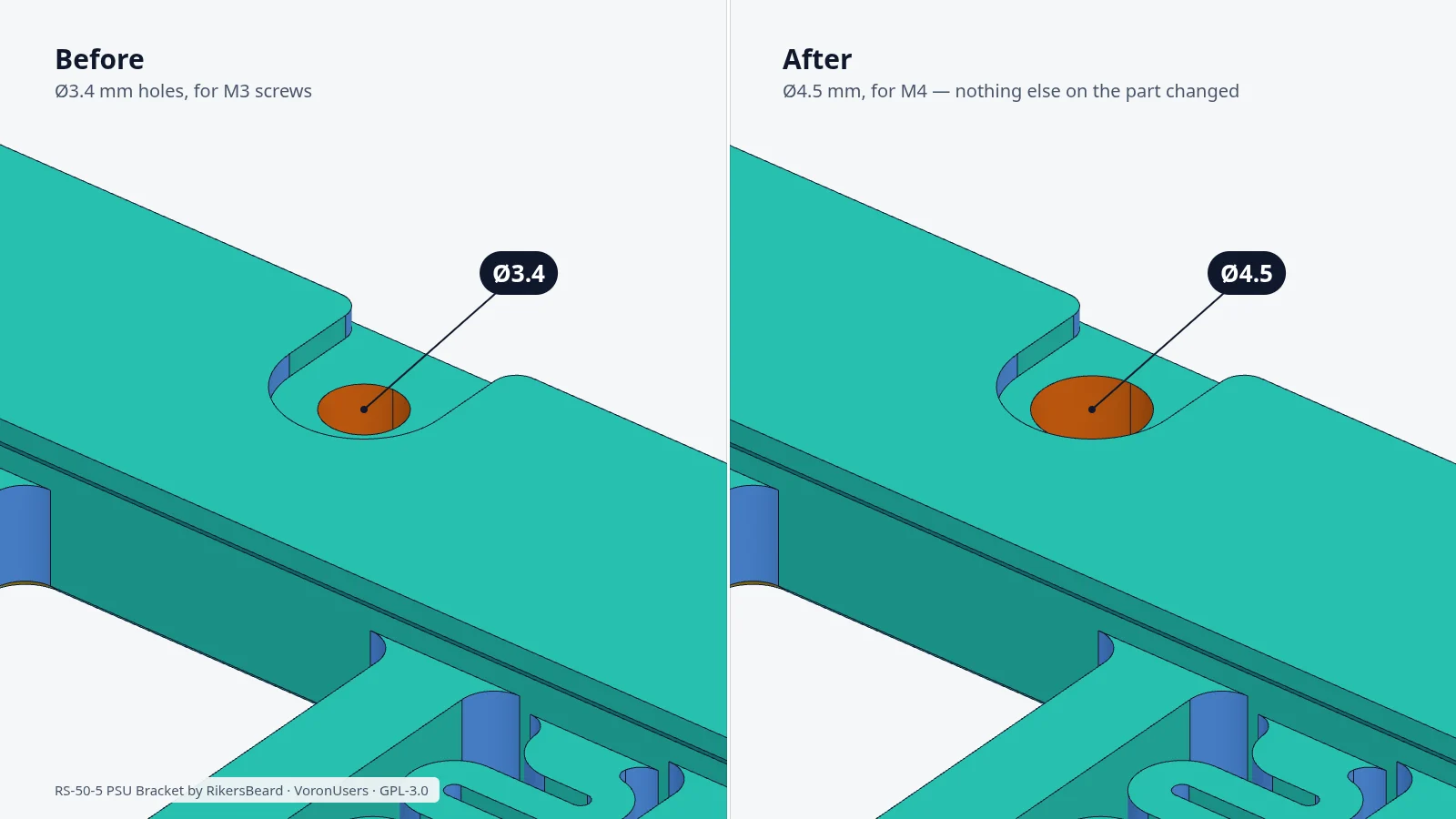
A real open-source part: a Voron PSU bracket, from its author’s own STL. Converted to STEP and rebuilt as code; click a hole, type 4.5, and both holes change. Compared with the author’s original STEP, nothing but the two holes is different. Inspect the measurements and download the files →
Recognized holes can expose an editable diameter. Check which hole or group the operation affects, then enter a new value without enlarging the whole part.
Select a plate or end face to adjust a recognized thickness or length. The part's geometry determines the available range.
Where a hole group or row-and-column pattern is recognized, adjust available spacing, hole count, rows or columns. Not every layout is recognized.
Open your local STL in the converter. Small meshes convert automatically; preview larger ones and simplify if needed before surfaces are recognized. After successful recognition, the available hole diameters, thicknesses or spacing are listed; face editing is offered only for supported solids and dimensions. Enter a new value and the geometry rebuilds and checks the change; inspect the affected features, outside shape and hole positions. Unsafe edits are refused. When it looks right, sign in to download the changed STEP.
You can try. Forgent3D recognizes CAD surfaces from the STL, then offers dimension editing for supported geometry. The original project is not required, but not every part or dimension can be recognized.
After conversion, select a recognized hole wall, inspect the diameter and affected hole group, then enter a new diameter. The Voron bracket example opens two holes from 3.4 to 4.5 mm and checks against the author’s original STEP that the outside dimensions, the hole centres and the rest of the part stay the same.
The converter downloads the edited part as STEP after sign-in. Keep the STEP for further CAD work; for printing, open it in the free STEP to STL tool to get an STL, or save a cloud model and export STL in the workspace. There is no direct edited-STL download button in the converter.
Conversion and local trials of supported dimension edits are free, need no account and do not upload the STL. Downloading the changed STEP requires sign-in: with an email code it downloads right on the page, without an upload; with Google or GitHub the part opens as a model in your account, which uploads the file. Manual edits and exports use no AI credits; saving a cloud model uploads files, and AI assistance uses credits.
STL to STEP addresses format conversion; STL Editor addresses dimension changes. They use the same converter: recognize surfaces, then choose whether to edit. If you already have a STEP, import it into the model workspace and edit it there.
No. This workflow targets recognizable geometry such as holes and plate faces. It is not a general mesh sculpting, hole-patching or repair tool, and it does not recover the original sketches, constraints or feature history. Scans, sculptures, damaged meshes and complex free-form shapes may offer no editable dimensions, and unrecognized faces may stay faceted; if a required dimension is not recognized, another modelling or mesh-editing approach is needed. The conversion benchmark does not measure editing success on arbitrary STL files.